CAPTOR (iOS) v 5.5.6 SharePoint Backup Option & New Content Import Method
Josh Bohls
CAPTOR (iOS) v5.5.6 was released this week with some great improvements that we are really excited to announce. The two primary changes are the addition of a new option to backup content to a SharePoint Site, and a new method of importing content into CAPTOR.
SHAREPOINT (Beta release)
CAPTOR has long supported content backups using SMB, SFTP, WebDAV, and OneDrive. This release includes a new option to backup to a SharePoint Site. When configured, a new permission will be requested (Sites.ReadWrite.All). This will need to be granted by the Entra Admin to proceed.
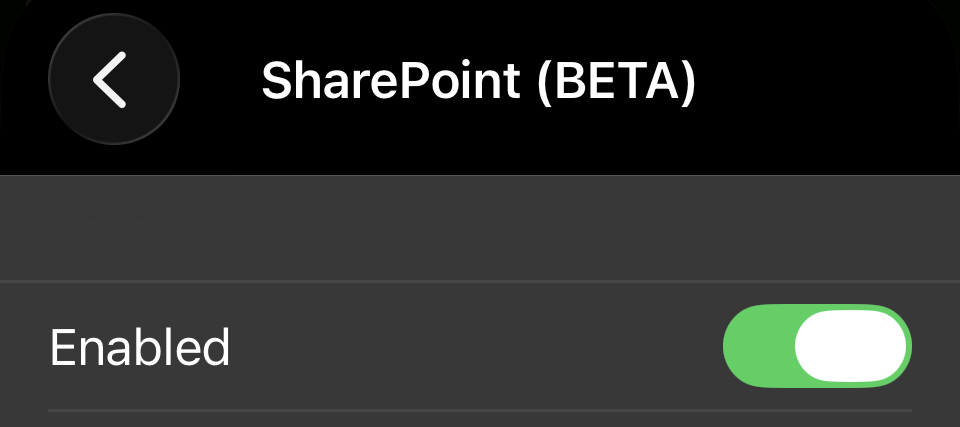
The SharePoint settings can be found in the CAPTOR app by going to Settings>Backup Config>SharePoint. There you will find the toggle to enable the protocol, and settings for the Site, Path, and User Folder toggle.
The main advantage of SharePoint over OneDrive is the ability to combine CAPTOR content from multiple users in one shared Site. For some use cases this is preferred. Our implementation of SharePoint allows you to configure:
1) Site URL (ex. https://mycompany.sharepoint.com/sites/mysite) is the actual URL to the root of the site.
2) Path (optional) creates a folder at the root of the Site’s Documents space. Do not include slashes. This folder may or may not already exist on the Site.
3) User Folder Toggle which determines if the system should create a user folder within which the CAPTOR content would be saved.
If enabled (toggled green), the system will create a folder structure of Site/Path/Username/[CAPTOR Content]. As users complete backups, you will see each CAPTOR username added as a folder within the Path folder (or at the Site root if no Path is used).
If disabled (toggled grey) the system will create a folder structure of Site/Path/[CAPTOR content]. As users complete backups, you will see their content merged together within any like-named folders. For example, if the Folder Nomenclature system is set to Daily, and five different users captured content on December 8th, 2025, you would see all of their content within the same folder named 2025-12-08. For situations like this we recommend configuring the key “filenamebase” with a token variable so that the file names are easily identifiable to the user.
CONTENT IMPORT ENHANCEMENTS
CAPTOR v5.5.6 introduces a new method to import content into CAPTOR. This feature is only available if the app config includes “allowimport” with the value “True”, and the container policy must allow data from an unmanaged app to be saved to a managed app. If these two prerequisites are met, a user can go to CAPTOR Folders, tap +, and see new option to Import Photos and Import Files.
Import Photos will prompt a permission request to access the user’s Photos. Accept this permission, and then you can select one or more photos/videos to import into CAPTOR.
Import Files will launch the Apple Files app. From there you can find content, tap Open In, and select CAPTOR. This will add the content to the CAPTOR Imported folder.