contact us

We'd love to hear from you - just enter your email address and a note and we'll respond within 24 hours.

5501A Balcones Dr #312
Austin, TX 78731
United States

5129708204

Inkscreen helps government and enterprise customers securely capture and manage content. CAPTOR has been called a “camera app on steroids wearing a bulletproof vest”, combining photo, video, and audio capture with full document scanning, encrypted containerized storage, and IT controls to manage how content is created, stored, and shared. 

Blog


CAPTOR by Inkscreen Now Available on the Jamf Marketplace

Josh Bohls

FOR IMMEDIATE RELEASE

Inkscreen’s CAPTOR™ App Now Available on the Jamf Marketplace
Empowering Secure Capture of Photos, Videos, and Scans on Managed iOS Devices

Austin, TX – December 8, 2025 — Inkscreen, a leader in mobile content capture security, is proud to announce that its flagship application, CAPTOR, is now available on the Jamf Marketplace, expanding access to organizations looking to enforce data protection policies on iOS devices.

CAPTOR is a secure camera, video, and document scanning app that replaces the native iOS apps to ensure that captured content is encrypted, containerized, and fully compliant with organizational security policies. With CAPTOR, enterprises can confidently allow mobile capture in regulated environments such as government, insurance, healthcare, legal, and financial services.

By joining the Jamf Marketplace, CAPTOR becomes even more accessible to Jamf customers who rely on best-in-class tools to manage and secure Apple devices across their workforce. The app is fully integrated with Jamf Pro, offering seamless deployment and policy enforcement, including app configuration, data loss prevention (DLP), and integration with secure file destinations such as Microsoft Intune, Microsoft 365, and others.

“Being featured in the Jamf Marketplace is a significant milestone for Inkscreen,” said Josh Bohls, Founder and CEO of Inkscreen. “It reinforces our commitment to empowering secure mobile workflows by giving IT and security teams the tools they need to maintain control over sensitive content captured on iPhones and iPads.”

Key CAPTOR Features:

  • Secure replacement for Camera, Photos, and Notes apps

  • Managed access via MDM (Jamf, Intune, etc.)

  • On-device encryption and policy-based storage

  • Direct integration with secure file destinations

  • Compliance with data protection regulations including HIPAA, GDPR, and CJIS

Organizations interested in streamlining secure mobile content capture can now explore and deploy CAPTOR directly via the Jamf Marketplace.

About Inkscreen
Inkscreen develops mobile applications that enable secure and compliant content capture and sharing. Its flagship product, CAPTOR, is trusted by organizations around the world to provide a secure mobile camera, document scanner, and media management solution.

For more information, visit www.inkscreen.com or contact press@inkscreen.com.

How CAPTOR Supports United States STIG Compliance for Secure Photo Capture and Management

Josh Bohls

For organizations that follow the United States Security Technical Implementation Guides (STIG), managing sensitive data on mobile devices is critical — especially when it comes to photos. According to the STIG for iOS devices:

“The iOS Photos app is unmanaged and may sync photos with a device user’s personal iCloud account. Therefore, work-related photos must not be taken via the iOS camera app or stored in the Photos app. A managed photo app must be used to take and manage work-related photos.”

This is exactly where CAPTOR by Inkscreen plays a vital role. CAPTOR replaces the native camera app with a secure, policy-controlled alternative that ensures all photos and videos are captured, stored, and shared exclusively within your organization’s secure environment. Photos never touch the unmanaged iOS Photos app or a personal iCloud account — eliminating a major data leakage risk.

CAPTOR integrates with your MDM/EMM solution, giving IT teams full control over how photos are used, shared, and retained. Whether documenting site visits, evidence, or sensitive work data, users can capture what they need without violating STIG requirements.

For organizations that take compliance seriously, CAPTOR is an essential tool to keep work content secure, private, and fully managed.

Do you want to test drive CAPTOR in your EMM environment? Request a free trial today or contact us to schedule a demo.

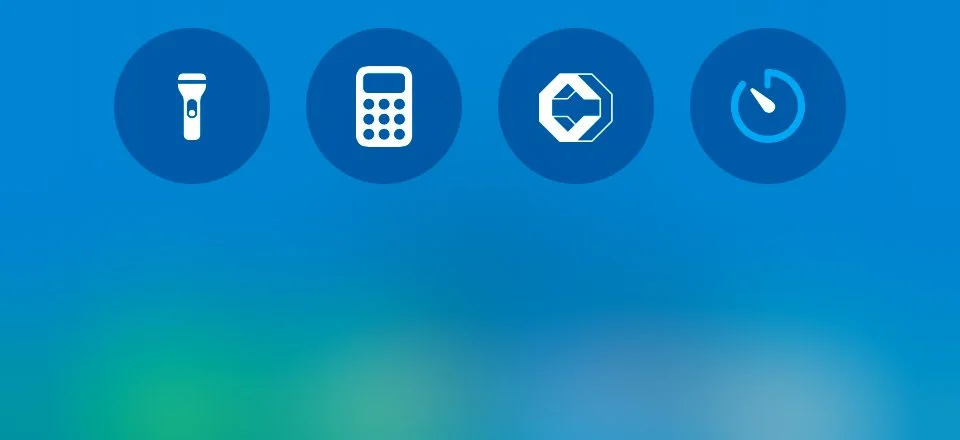
Adding CAPTOR to iPhone Lock Screen & Control Center

Josh Bohls

This article explains how to add CAPTOR to the iPhone lock screen and Control Center, which make launching the app easier and faster. This applies to CAPTOR (iOS) v5.3.0 and later.

How do I add CAPTOR to my iPhone Lock Screen?

1) Lock your iPhone so the screen is off.

2) Tap on the screen to “wake it up”.

3) Long-press and hold in the lower middle part of the screen, between the two action buttons (Flashlight and Camera, if they have not been altered already).

4) Tap Customize.

5) Tap on the Lock Screen.

6) Tap the “-” button on one of the two default action buttons (Flashlight or Camera).

7) Tap the “+” button to add a new action button in it’s place.

8) Tap on “Open CAPTOR” beneath the CAPTOR app icon.

9) Tap Done.

Now you can access CAPTOR directly from the lock screen by long-pressing on the CAPTOR icon.

How do I add CAPTOR to my iPhone Control Center?

1) Swipe down from the top right of the iPhone to reveal the Control Center.

2) Tap the “+” button on the top left.

3) Tap “Add a Control”.

4) Tap “Open CAPTOR” beneath the CAPTOR app icon.

5) Tap anywhere on the screen to save and exit that mode.

6) Test by swiping down from the top right, and tapping the CAPTOR icon. This should launch CAPTOR.

Here is a short video of the steps outlined above.