contact us

We'd love to hear from you - just enter your email address and a note and we'll respond within 24 hours.

5501A Balcones Dr #312
Austin, TX 78731
United States

5129708204

Inkscreen helps government and enterprise customers securely capture and manage content. CAPTOR has been called a “camera app on steroids wearing a bulletproof vest”, combining photo, video, and audio capture with full document scanning, encrypted containerized storage, and IT controls to manage how content is created, stored, and shared. 

Blog


CAPTOR (Android) v2.2.x Release Notes

Josh Bohls

This month we have released updates to the CAPTOR Android apps which introduce a few new user interface changes and enhancements. The releases span versions 2.2.5 - 2.2.6, and include CAPTOR (Android Enterprise) and CAPTOR for Intune (Android). CAPTOR for BlackBerry (Android) v2.2.6 is forthcoming very soon. Let’s dig in!

  • Default Capture Mode. This is a big change to how users interact with CAPTOR. Instead of launching to the normal CAPTOR home screen, the app will now up up directly to the capture “mode” you use most. You can either configure this in your EMM, or the app user can select a default. The options are Photo, Video, Audio, or Doc.

  • SMB Path. For those of you with CAPTOR configured to backup content using the SMB protocol, this feature will be useful. In prior releases, the value you set for “SMB Path” must have mapped to an existing folder, and if that folder was not found the backup would fail. The system now writes the new folder if it does not already exist on the server. This will improve the overall reliability and robustness of the backup system.

  • Biometric Authentication. We have updated the biometric authentication options and released a new app configuration to control it (Allow Biometrics, values “true” or “false”). This will prompt the app user to enable fingerprint or facial recognition to authenticate the app.

  • App Icons. Last but not least, the app icons have been updated to reflect the new CAPTOR branding. They also incorporate adaptive design for devices that display app icons as circles and other shapes.

We hope you enjoy these new enhancements. Please share feedback by emailing support[at]inkscreen[dot]com or submit a ticket on our Support page.

CAPTOR (iOS) 5.0.9

Josh Bohls

This week we released CAPTOR (iOS) v5.0.9 (Intune, Ivanti, BlackBerry, and Enterprise/AppConfig versions). This is a big release filled with suggestions from our customers. Here is a rundown of what’s new:

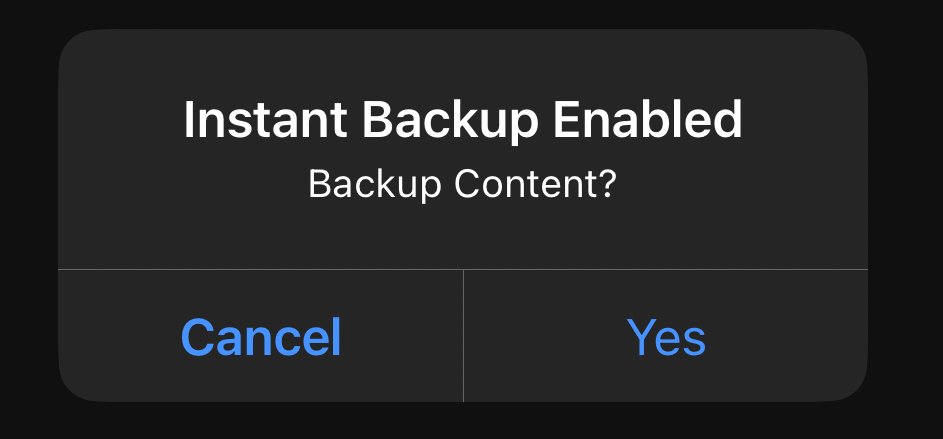
  • Instant Backup Option. Many customers use the key “automatebackupafter"=0, which instructs the app to automatically run content backups at the start of each session. One of our most frequent app improvement suggestions is to enable real time backups so that content captured in the current session can be saved to a content server immediately. CAPTOR now allows you to set “automatebackupafter"=instant and app users will start receiving prompts to backup content as they are capturing. BlackBerry UEM Admins would enter a value of “-2” to enable this feature.

  • Compass Heading. Some customers need to know the direction the device is pointing when a photo is captured. CAPTOR now supports this feature. You will see the Compass Heading data added to the caption of photos, in the Media Info screen, and also in the metadata.

  • Full Address Location Option. While we are on the topic of Captions, we also incorporated a new location option to include the full address. Previously, CAPTOR supported location types of Latitude/Longitude and City/State/Country. We now offer Address as an option.

  • “locationtype” appconfig. We released a new appconfig for “locationtype”, with the default value of “city”, and other supported values of “address” and “latlong”. If you configure this key/value in your EMM, the app setting will be locked and the selected location type will be displayed in the caption for shared and backed-up content.

  • Volume Buttons for Photo Capture. CAPTOR now allows you to press one of the Volume buttons to capture a photo.

  • Intune Sign-out. New app setting allowing user to completely sign out of their Microsoft account. This will permanently delete all content within the app. The action must be triple-confirmed to avoid accidental deletion.

  • Switch Languages in App. CAPTOR supports English, Spanish, German, Dutch, Italian, and French. You can now switch the language used in the app in the app Settings.

  • iOS 18 Support. This version of CAPTOR is tested on iOS 18, and currently supports devices running iOS 16 - 18. iOS 16 support will be carried until January 2025, after which CAPTOR will only support iOS 17 and 18.

As always we welcome your feedback. If you encounter any issues with the new release please contact Inkscreen Support. Request a demo of CAPTOR here.

CAPTOR (iOS) 5.0.7 Upgraded Camera Options

Josh Bohls

Hello and thank you for reading our Secure Content Capture blog and staying up to date with CAPTOR app releases. This month we are releasing CAPTOR (iOS) v5.0.7 which includes some more upgrades and options for the CAPTOR camera.

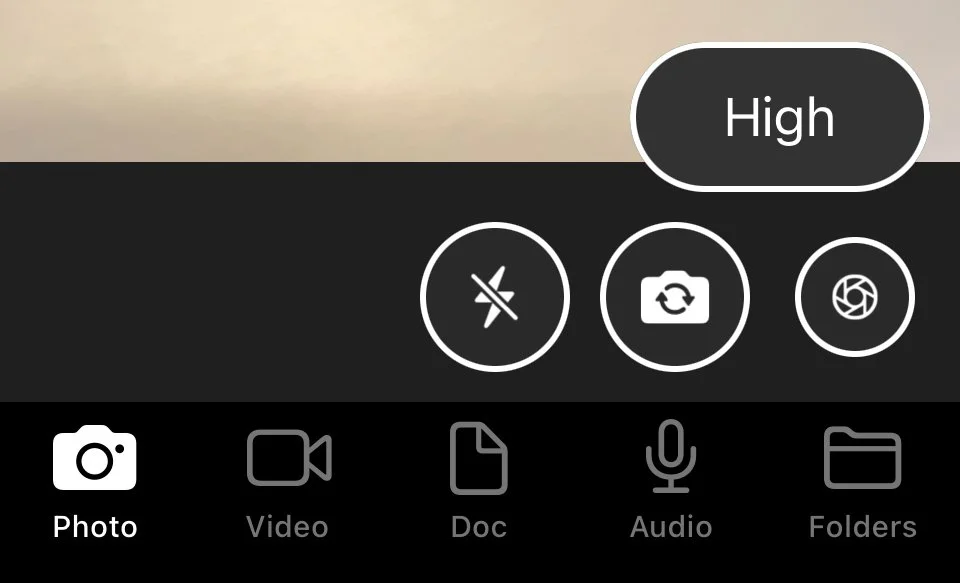
The most noticeable change is the new button in the camera mode settings. Open CAPTOR and go to the Photo tab. Tap the mode settings button in the bottom right corner. The new button is labeled either HIGH or LOW, denoting the quality the photo will be captured in.

The value shown (either LOW or HIGH) indicates the pixel resolution that the image will be captured in. LOW will essentially produce HD (High Definition) photos in around 1080p resolution. HIGH will produce UHD (Ultra High Definition) photos that are roughly in 4K. The actual resolution varies by device, and is not exact due to the camera cropping the preview.

This setting will also impact the camera performance. If the user’s goal is to take a lot of photos quickly, we recommend LOW since the camera is able to process the images quicker. At LOW, you could capture as many as 8 photos per second.

If the goal is to capture high resolution photos, HIGH is the better choice. HIGH will allow you to capture up to 4 photos per second, but the resolution will be roughly three times as high.

Let’s look at an example to illustrate the difference in photo quality.

These two photos were captured by CAPTOR. The photo on the left was captured in LOW, while the one on the right was captured in HIGH.

Some stats on the two photos above:

LOW (Left photo) is 2.5 MB with resolution of 1120x1557.

HIGH (Right photo) is 8.3 MB with resolution of 1984x2762.

When you start to zoom in you will begin to see the differences between the two photos.

You can see the LOW (Left) photo becomes pixelated while the HIGH (Right) photo maintains smoother lines.

These options come down to the use case. Now with CAPTOR you can easily switch between photo capture quality modes, just like you have been able to with video capture, and get the photo right every time.

We hope this new option allows your CAPTOR users the flexibility to perform their job more productively, and securely capture content exactly suiting the needs of your business. If you have questions please contact us today.